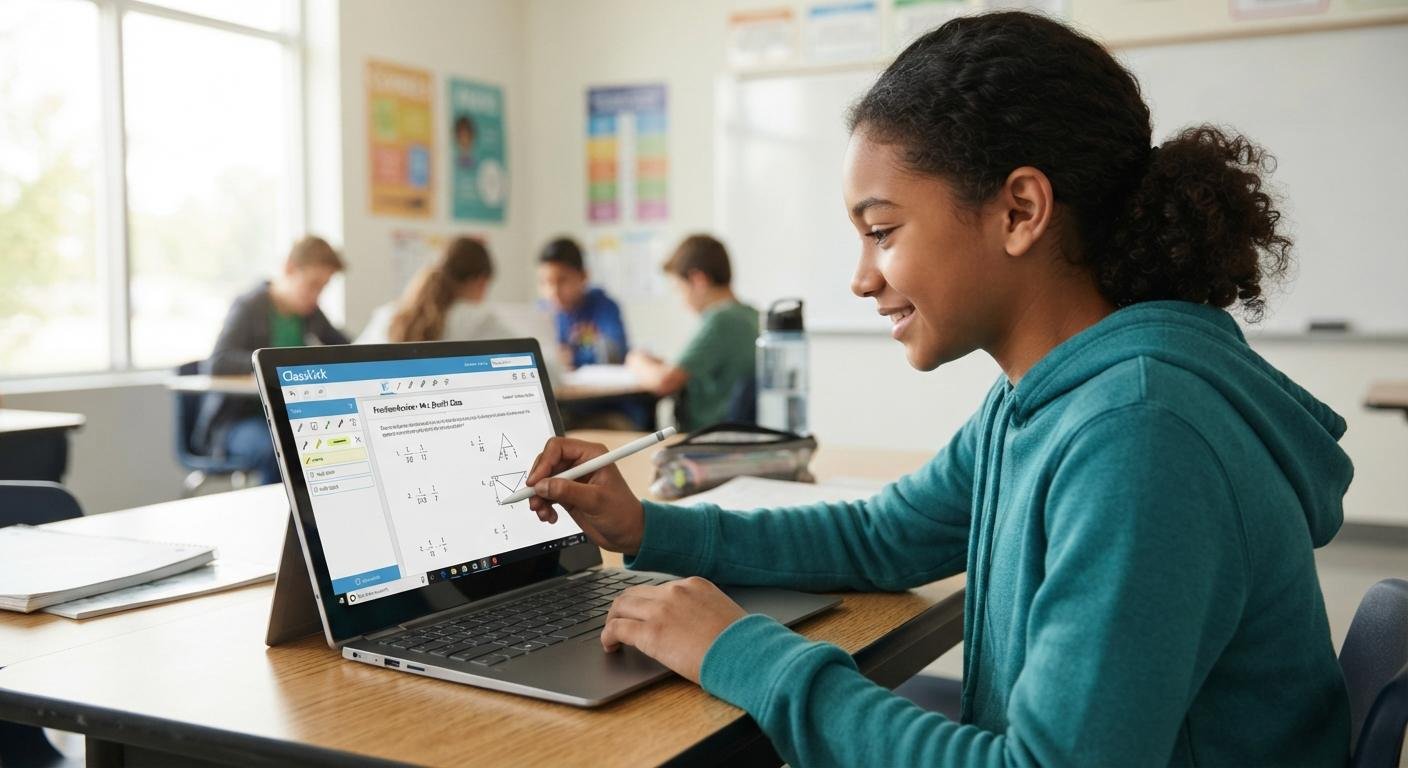
Remember the days of waiting days or weeks for a graded test to return? Those days are fading fast. Today, interactive digital learning platforms are transforming classrooms, and classkick student portals are right at the forefront of this shift. If your teacher just handed you a class code or told you to log into a digital workspace, you might be wondering how it all works.
Classkick is an awesome tool that bridges the gap between traditional pen-and-paper assignments and modern remote learning. It lets you complete interactive lessons online while your teacher watches your progress and gives you a hand in real time. Whether you are brand new to the platform or looking for ways to navigate your assignments more smoothly, this comprehensive guide has you covered.
Getting Started: How to Log In as a Classkick Student
Before you can start drawing, writing, or solving problems, you need to know how to get into your workspace. Depending on how your teacher set up your virtual classroom, you will log in using one of two main methods.
1. Basic Student Access (No Account Required)
If your teacher uses basic access, you do not need to remember a password or create a permanent account.
- Go to the official login page at app.classkick.com.
- Type or paste the unique Class Code provided by your teacher.
- Enter your First and Last Name.
- Hit Go and jump straight into the assignment.
Pro Tip: Always spell and format your name the exact same way every time you log in. If you write “Alex M.” today and “Alexander” tomorrow, the system will treat you like a brand-new student, and your previous work won’t show up!
2. Portfolio Student Access (With an Account)
If your teacher wants you to keep all your work organized in a personal dashboard, you will use a Portfolio account.
- Head over to app.classkick.com and click Log In.
- Choose Continue with Google, Continue with Clever, or use your email and password.
- View your Assignment Dashboard to see all current and past tasks.
Core Features and Interactive Tools
Once you are logged into your assignment, you will notice a clean workspace filled with digital tools designed to make learning easier. You aren’t just typing text; you are actively interacting with the content.
- The Pen and Highlighter: Draw equations, underline keywords, or sketch diagrams natively on your screen.
- Text Boxes: Type out longer paragraph answers cleanly without worrying about messy handwriting.
- Audio Recording: Stuck on how to write something out? Many assignments let you record your voice to explain your answer to your teacher verbally.
- Image and Link Inserts: Drop helpful screenshots, diagrams, or web links directly onto your canvas if the assignment asks for outside research.
How to Get Help and Instant Feedback
One of the coolest parts of using Classkick as a student is that you are never truly stuck. Traditional homework means waiting until the next day to ask a question, but Classkick changes that dynamic.
- Raise Your Hand: If you get stuck on a tough question, click the “Raise Hand” button in the corner of your screen. This sends a quiet alert to your teacher letting them know you need assistance.
- Real-Time Guidance: Your teacher can view your screen live. They can pop onto your slide, leave a sticky note, or write a helpful hint directly next to your work.
- Peer Help: Depending on your classroom settings, you might even be able to anonymously help your classmates or view shared hints, fostering a collaborative team environment.
Frequently Asked Questions (FAQs)
What should I do if my class code isn’t working?
First, double-check the spelling and numbers with your classmate or teacher. Class codes are case-sensitive and change depending on the specific assignment. If it still fails, try clearing your browser cache or switching to a supported browser like Google Chrome.
Can I use Classkick on my phone or tablet?
Yes! While a laptop or Chromebook offers the best workspace for typing and drawing with a mouse or trackpad, you can also download the mobile app or access it via mobile web browsers.
Will my answers save if my computer crashes?
Classkick automatically saves your work as you draw and type. If your browser closes or your battery dies, simply log back in using the exact same credentials or class code, and you will pick up right where you left off.
Conclusion
Mastering the classkick student experience is a fantastic way to stay organized, get immediate help on tough assignments, and take control of your academic progress. By understanding the login process, utilizing interactive tools like the digital pen and audio recording, and knowing how to reach out for real-time feedback, you are fully equipped to ace your next digital lesson.
Ready to dive deeper into smart study habits? Explore our other student resources and tech guides to boost your productivity today!